logo

WordPress Design Agency

020 3355 8747

Message Us
  • Home
  • About Impact®
    Learn More About Impact Media®
    • Meet The Team
       
    • Why WordPress
       
    • Careers
       
    • Giving Back
       
    • 100K Tree Challenge
       
    James Coates
    Schedule a discovery call with UX Specialist James
    Book A Call
  • WordPress Services
    Learn More About Our Services
    • WordPress Web Design
       
    • UX Design
       
    • WordPress Development
       
    • WordPress Support & Maintenance
       
    • WordPress Evolve Retainer
       
    • WordPress Multisite Development
       
    • WooCommerce
       
    • Replatform To WordPress
       
    • WordPress Consultancy
       
    • Integrations & Plugins
       
    • WordPress Managed Hosting
       
    • WordPress Health Check
       
    James Coates
    Schedule a discovery call with UX Specialist James
    Book A Call
  • Our Process
  • Case Studies
  • Insights
  • Contact Us
WordPress Design Agency
020 3355 8747
logo logo
Book A Call
Back
Menu
  • Home
     
  •  
    About Impact Media
    Learn More About The Impacters
    • Meet The Team
       
    • Why WordPress
       
    • Careers
       
    • Giving Back
       
    • 100K Tree Challenge
       
  •  
    Our Services
    Discover How We Can Help
    • WordPress Web Design
       
    • UX Design
       
    • WordPress Development
       
    • WordPress Support & Maintenance
       
    • WordPress Evolve Retainer
       
    • WordPress Multisite Development
       
    • WooCommerce
       
    • Replatform To WordPress
       
    • WordPress Consultancy
       
    • Integrations & Plugins
       
    • WordPress Managed Hosting
       
    • WordPress Health Check
       
  • Our Process
     
  • Case Studies
     
  • Insights
     
  • Contact Us
     
020 3355 8747
Mon - Fri • 9am - 5pm
Close

Oops! We could not locate your form.

Home / Insights / SEO For WordPress – Optimisation Basics To Boost Your Rankings
Back

SEO For WordPress – Optimisation Basics To Boost Your Rankings

Published 29.06.22
29th June 2022
Last Updated 12.08.26
12th August 2026

Newer
39 Min Read
Vikki Baker
Vikki Baker
Marketing
Older
39 Min Read
 
Vikki Baker
Vikki Baker
 
Marketing

SEO (Search Engine Optimisation) is constantly changing. Search engines are always evolving their algorithms, aiming to improve how they decide what pages should rank for any given search query.


illustration of screens, tools and timers to represent seo

Techniques that were popular in SEO a few years ago are now pointless, whilst other methods are timeless. This is because search engines have tried to improve the quality and relevancy of the results they serve and to prevent attempts to game the system, getting pages that aren’t relevant or offer a poor user experience to rank highly.

Google make thousands of updates to their algorithm every year. Most of these we hear nothing about, but if an update is going to be large and potentially disruptive to the search engine results pages (SERPs) they usually give it a name and let people know when the rollout begins and ends.

You’ve probably heard some of the big update names thrown around if you work with an SEO partner, or have in-house specialists.

Most big updates these days get dull names like ‘May 2022 Core Update‘ or ‘Product Reviews Update’ but back in the day, Google went through a phase of naming them after black and white animals. Panda and Penguin were 2 of the biggies which shook up the SEO world back in 2011 & 2012.

I’m still waiting for an Orca update Google!

illustration of an orca whale
Orca Whale

SEO Specialists

With search engines constantly evolving, so is SEO. This means that to be an effective SEO practitioner you need to be agile and absorb new information and data constantly to stay up to date. Most specialists worth their salt live and breathe the topic.

Within SEO there are also several specialities.

Technical SEO involves understanding how search engines and their crawlers work, and how to optimise a website from a technical perspective to ensure it is crawled properly so that it can be indexed.

Some specialists focus on on-page optimisation. Ensuring web pages are properly structured and optimised to enhance their chances of ranking well.

Others focus on creating useful, informative, and quality content, whilst aiming to get it ranking for specific terms that will bring in relevant, converting traffic.

This is simplistic and barely scratching the surface, but needless to say, lots of tasks and SEO strategies are best left up to those who specialise in it.

Optimising Your SEO Partners Hours

There are, however, some simple but important tasks you can do yourself.

These will not only help with the overall optimisation of your website, but if you use an agency or freelancer, these tasks will take a lot of the basic but potentially time-consuming stuff off their plate.

But why would you want to do that?

Because if you’re paying for an SEO partner, they likely have a finite number of hours in which to work on your account. By getting the basics right yourself and removing them from their workload, their limited hours can be better utilised on SEO strategy, technical SEO, and other tasks that are best suited to an SEO specialist.

You can work to complement the strategy, and make use of their outputs (such as keyword research, audits, and recommendations documents.)

In our last post, we discussed some useful plugins, tools and extensions for those managing a WordPress website. Now let’s dive into how to actually use some of those tools to help you get some basic but important optimisation tasks done.

Simple SEO Tasks & Checks For Your WordPress Website

Contents

  • Page Titles
  • Meta Descriptions
  • Slugs
  • Heading Structure
  • Internal Linking
  • Images
  • Redirects
  • Fixing Internal Links

Page Titles

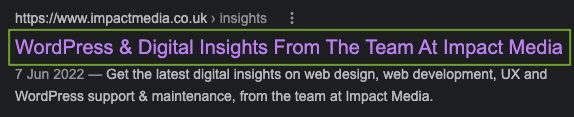
Your Page Title is very important, as it tells both people searching and search engines what your page is about.

It helps search engines decide the relevancy of your page to search queries, and whether to include it as a result for any given search.

As the most prominent part of a standard organic result, it also helps a person decide whether to click through to your page from the SERP.

It’ll also often be pulled through when a link is shared to your page via Social Media.

SERP result example - page title
Page Title in the SERP

So whenever you add a new page or post, ensure that you give it a well-optimised, descriptive, unique and enticing Page Title. It should clearly communicate what your page contains.

Write your Page Titles for humans, not for search engines. They should contain target keywords naturally based on the page’s content and purpose. Prior research should have told you what your audience will be searching for.

Don’t just stuff a bunch of keywords in there, or it will look unnatural and will be meaningless to someone viewing it. Do try to put the unique or important information and keywords at the start of the Page Title, as it’ll quickly let someone who is just scanning the SERP know what your page has to offer.

Managing Page Titles

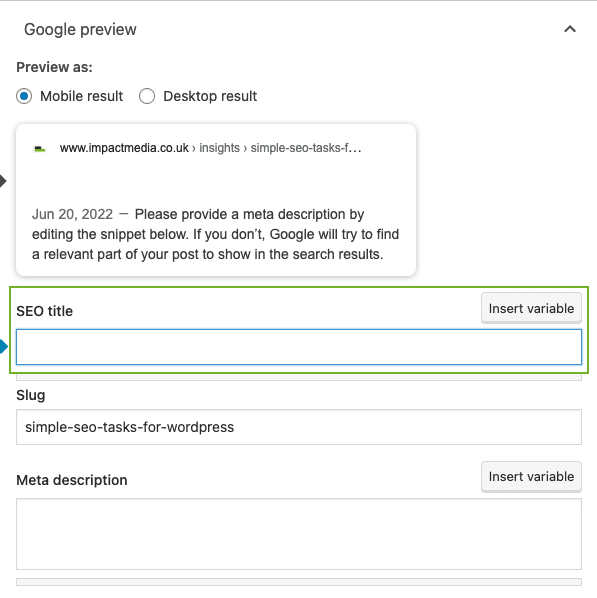
You can easily manage and update your Page Titles in WordPress by using plugins like Yoast or Rank Math. These plugins give you full control to write and rewrite your Page Titles or set default fallback options.

yoast Google Preview page titles
Yoast – Manage Page Titles

Duplicate Page Titles

Avoid duplicate Page Titles on your website, to avoid confusion for search engines. Duplicates can lead to potential cannibalisation, where 2 or more of your pages are ranking for the same queries, possibly causing them to rank lower than 1 unique page would.

Page Title Length

On top of the content of your Page Titles, it’s also important to consider their length, to prevent them from being truncated in the SERP. A truncated page title may lead to it not clearly communicating what the page contains to both users and search engine crawlers

Yoast and similar plugins will give you a guide on length. I prefer to use Screaming Frog.

Existing Page Title Length

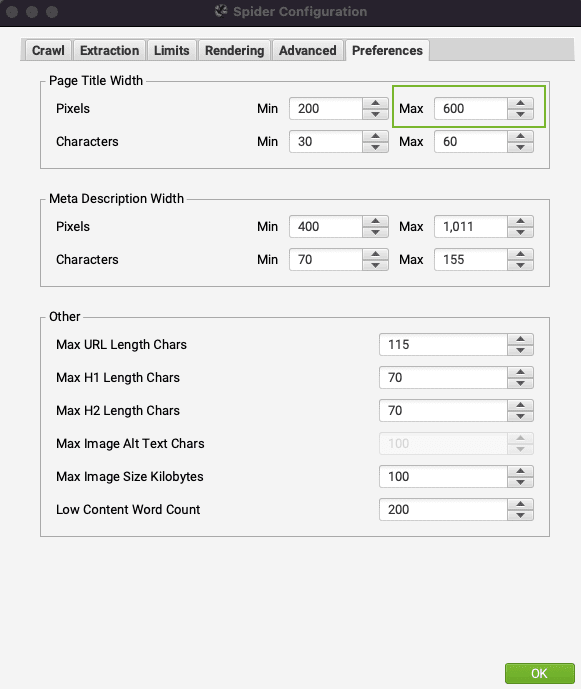
First thing is to open Screaming Frog, open the Configuration menu, and then select Spider. Then go to the Preferences tab and update the pixels Max to 600.

Update pixel width in Screaming Frog
Update Pixel Max Width

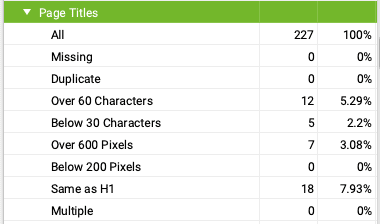
For your existing titles (this will also show you where they are missing, too short, or duplicated) run a crawl of your website in Screaming Frog. Once complete scroll down to Page Titles in the overview panel. You’ll see a breakdown like this:

Screaming Frog Page Titles
Screaming Frog Page Titles Overview

It gives you the number of Page Titles it found whilst crawling, how many pages were missing them or had duplicates, and how many were over and under a certain length. I prefer to go by the pixel length, and in the example above you can see that it found 7 Page Titles that were over 600 pixels in length.

If you click on this, it will then filter to just these pages in the main window, so you know which ones to work on.

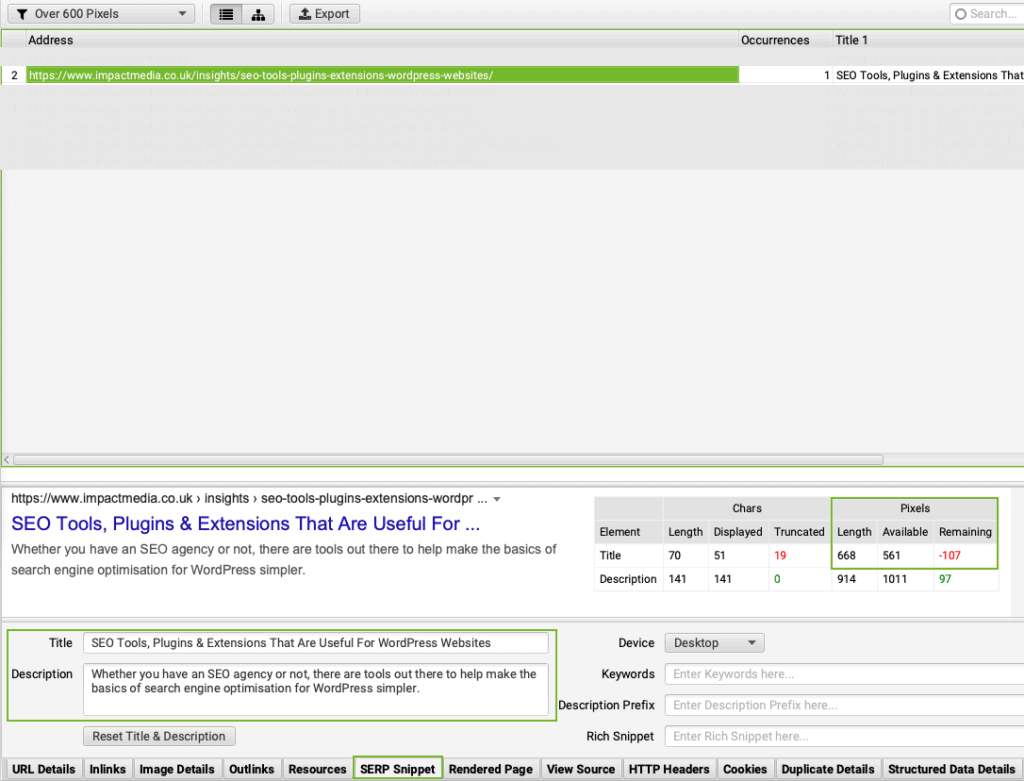
Even better, if you then select one of these pages and select the SERP Snippet tab at the bottom, you will be able to see the current Page Title, and test alternatives with a live guide to length. Then once you are happy, you can implement your rewritten Page Title on your page.

Screaming Frog SERP Snippet Tool example
Screaming Frog SERP Snippet Tool

New Page Title Length

You can also utilise this tool to check the length of new Page Titles before pushing a new page live. If you have a Screaming Frog crawl of your site open, just click on any page so that you can access the SERP Snippet tab, and away you go.

Note – In some cases, Google may not use your Page Title, and use one it considers is more relevant. This is a sign that yours might need some work.

Meta Descriptions

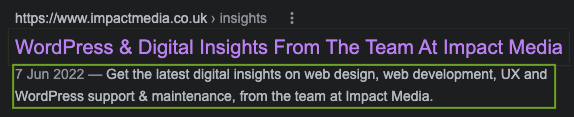
A Meta Description is the bit of text that sits below the Page Title in a typical organic search result.

Meta description example in SERP
Meta Description in SERP

Meta descriptions are primarily there for users, and don’t directly impact rankings and Google frequently rewrites them. But they can impact your CTR. They enable you to provide additional information on what your page contains, to entice people to click through from your result in the SERP. As such, they should be descriptive, unique and helpful, so a user knows what to expect if they do click through.

Managing Meta Descriptions

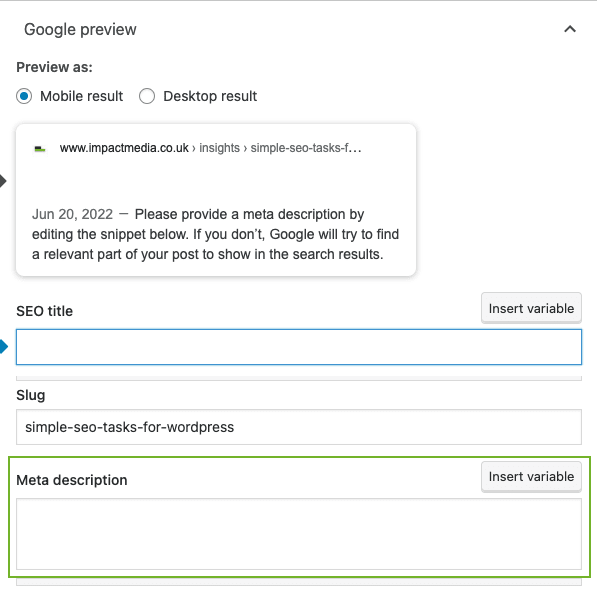
Just as you can with Page Titles, you can write and update your Meta Descriptions using WordPress plugins like Yoast and Rank Math.

Yoast's Google Preview for adding Meta Descriptions
Yoast – Manage Meta Descriptions

Meta Description Length

Meta Descriptions can be any length, but as with Page Titles, they will get truncated past a certain length. I tend to aim for the preset pixel width of 1011 in Screaming Frog as my maximum length.

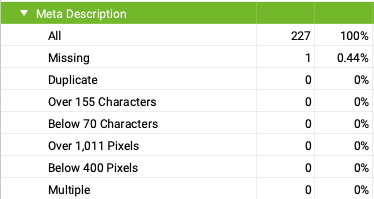
You can check your website for Meta Descriptions that are missing, too long, or duplicated in exactly the same way that we did for Page Titles, and you can test potential Meta Descriptions in the SERP Snippet tool.

Screaming Frog meta descriptions
Screaming Frog Meta Descriptions Overview

Note – Even though you may create wonderful meta descriptions, sometimes you may find that Google simply doesn’t use them, and will create a meta description from information on your page that it determines to be more suitable.

URL Slugs

Be in control of your URL slug. Don’t leave this to be auto-set, as it might leave users and search engines in doubt when trying to define what your page’s purpose is.

Make it relevant, do away with unnecessary words, and try to keep the length down.

Managing Slugs

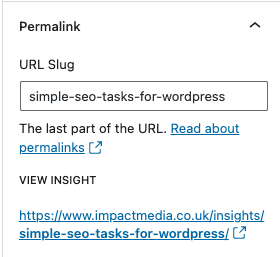
Creating your slug in WordPress is simple enough, whether you’re using the native Gutenberg editor, Classic editor, or another page builder like Elementor or Divi. If you’re using Yoast, you can also edit it that way.

Here is an example from a blog post page using the native WordPress Gutenberg editor. In the settings sidebar, there is a Permalink section. You can edit your slug here before publishing your post.

editing slug in WordPress
WordPress Settings Sidebar – URL Slug

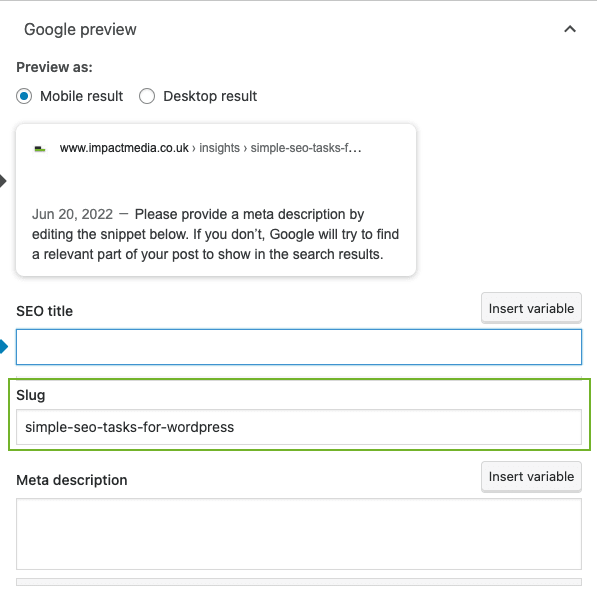
Or you can edit your slug using Yoast, in the same place you add your Page Title & Meta Description.

Yoast's Google Preview for adding slug
Yoast – Manage Slug

IMPORTANT – If you are updating the URL of an already published page, ensure you add a redirect from the old one to the new one. If there were internal links to the old URL across the site, it is good practice to update those too.

Heading Structure

Whether you write your own content, have content writing resources in-house, or use an external content writer, make sure you or they are briefed to use a proper heading structure.

A page that is properly laid out gives both users and search engines an indication of the structure of a page, and the hierarchy of importance of the content contained within it. It is also important for accessibility, as properly marked up headings will give those using devices like page readers an understanding of page organisation.

Using subheadings to break up blocks of content, also makes a page far more digestible for anyone reading it, and lets someone easily navigate to a section of particular interest if the subheading accurately reflects the content below it.

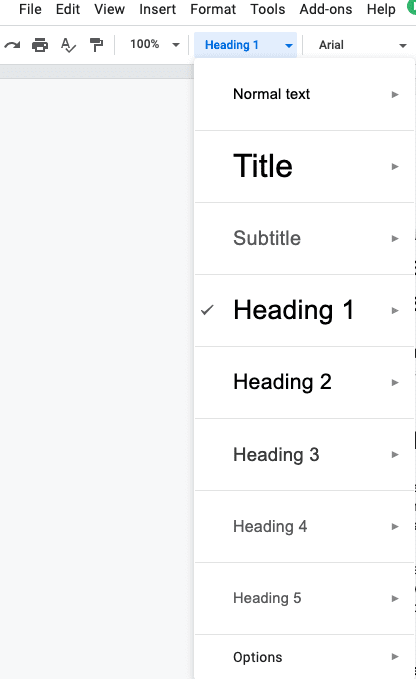
If the person writing your content does so with a proper heading structure in place, it will make adding the content to your website simpler. Google Docs allows headings to be marked up on the page, and these are usually maintained when dropped into a WordPress page editor. Saving you from having to add the header tags over again.

Google Docs Headings
Headings In Google Docs

Do not use headings as a styling device. You shouldn’t mark something as an H1 or H2 just because you want it to appear larger. Don’t skip heading levels either.

For a good summary on heading structure and use, I’d recommend reading this page from Screaming Frog, and this post from the A11y Project.

Headings & Subheadings

The posts I’ve linked to will give you further information on using and writing headers, but here is a very brief reminder on use.

H1 – There should only be 1 H1.

Highlander - there can be only one
There Can Be Only One – Highlander

It can be the same as your Page Title, or it can be slightly different but similar. Making it different used to be a good way to try and appear for more keywords, but these days it isn’t very effective. Google may even use your H1 as your Page Title if it decides that it’s more relevant.

H2 – These should be used to indicate what each section of your page or post is about.

H3 – These should be used for subsections, under your sections.

H4 – H6 – These are for more detailed content which requires greater breaking down. So these would be subsections of your subsections.

Internal Linking

People underestimate the importance and power of internal linking, yet it’s a very important part of a solid SEO strategy. It helps Google crawl your site, work out what content is related, understand site hierarchy and much more.

Most websites will have sitewide links in the form of a navigation and menus, but incorporating links within your page content is important too.

Whenever you are creating content for your website, a service page, a product page, or a blog or news article, think about what you are linking to. Does it make sense for that link to be there?

For example, on a product or service page, you may link to:

  • related products
  • a blog post you have which talks about why the product type is useful or sought after
  • a review article you have onsite where you have tested the product
  • a case study you’ve created based on a customer using that product

It is also important to ensure the anchor text you choose for your internal links makes sense and is descriptive. This lets a user know where they’ll end up if they click it, and it gives Google context.

There are lots of great resources out there with advice on internal linking, and I highly recommend checking out this great study on internal linking by Cyrus Shepard.

Images

How you handle images is important for SEO, general performance and accessibility. Whenever you upload an image, make sure it’s of the right size, give the file a relevant name, and add useful alt text.

Here is Google’s own advice on image best practice.

Image Size & Compression

Whilst image size is not directly related to rankings, offering fast-loading pages that offer a good user experience is definitely something that Google looks for when ranking pages. Images are a big offender when it comes to slowing websites down.

Your developer will hopefully have used best practices for responsive images, to create a better user experience for people accessing your website from a variety of devices.

Upload Size

Try to upload images at the size they’re required. Uploading a 5000px x 3500px, for a hero image that is 1200px x 800px isn’t going to do you any favours when it comes to page speed.

Ask your developers for the correct image sizes required for the various image types on your website, and always try to upload them to your media library at this size. This will save a lot of unnecessary page weight.

Image Compression

Added to this, ensure that your website is using an image compression tool that automatically compresses images when you upload them. Plugins like ShortPixel, WP Smush and ReSmush.it make this simple. They reduce the file size without dramatically affecting image quality.

We implement ShortPixel or a similar solution into all websites we build, but if you’re not sure if your website has one, speak to your developer.

Next Generation Formats

Another thing to consider is the use of next-generation formats for images and videos. This is a conversation to have with your developer, but WordPress does support WebP & WebM. Some extra development may be required to include and serve fallback image formats for those browsers that don’t yet support next-gen formats.

WebP is a next-gen image format that allows developers to compress images without impacting their image quality to a far greater degree than compressing standard image formats. WebM is its counterpart for video.

Alt Tags, Captions & File Names

Giving your image files a meaningful name before uploading them to your media library will help you with file management, and provides useful information for search engines on the image content. Which can then appear in image search.

Screenshot of Google image search tab
Google Images Search Tab

This is also true of captions if it’s appropriate to use them.

Even more important is the image Alt Text. This not only provides valuable information to search engines on image content but is also a vital accessibility tool.

A Little Sidetrack Into Accessibility

When a user with a screen reader is accessing your page, although they may not be able to see the image, the screen reader will read aloud the Alt Text. That is why you should always use descriptive Alt Text, to provide a clear understanding of what is pictured.

If you’d like to get a better understanding of how screen readers work, and how those who are blind or partially sighted experience your website using one, I’d recommend adding Silktides Google Chrome extension. It can emulate a screen reader, and also replicate the website experience for users with colour blindness and dyslexia.

Although accessibility isn’t a stated ranking factor for Google, accessibility is included as a section in Lighthouse, and it wouldn’t surprise me if down the line it becomes an explicit ranking factor.

If you’d like to learn more about accessibility and its relationship with SEO, check out this blog post by Technical SEO Stephen Job from Footprint Digital.

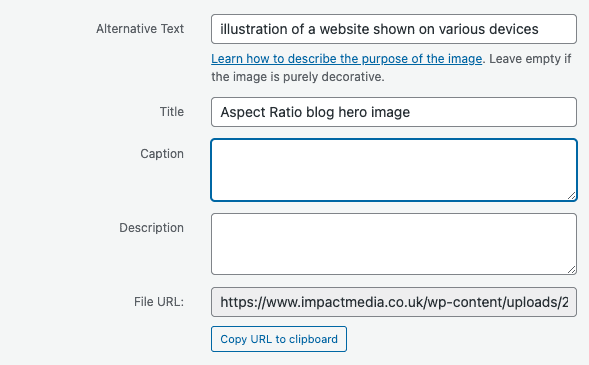
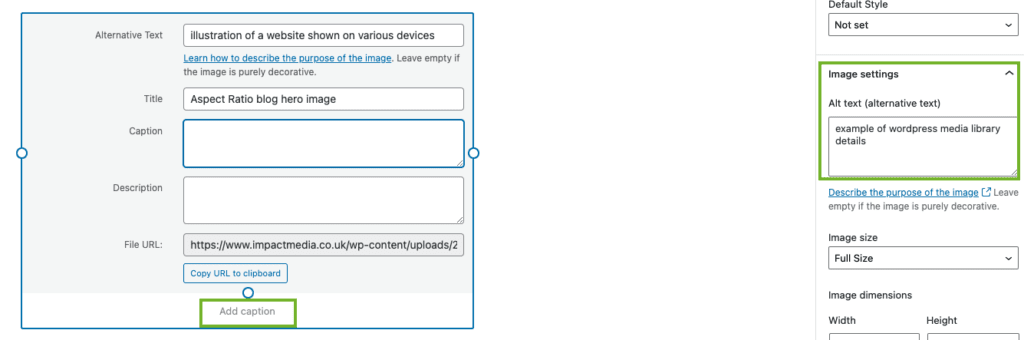
You can manage image naming, captions, and alt text with the WordPress media library. If you click on an image once uploaded you can add all of that information in, before even adding your image to a page.

example of wordpress media library details
WordPress Media Library – Image Details

If adding an image straight to a post in the Gutenberg editor, you can edit these details there also, within the block settings. It’s usually the same for other page builders.

Example of image block editor in Gutenberg
Gutenberg Image Block – Image Details

Never use an image as the only way to communicate important information. Your page should deliver the same information to a user whether they are using a screen reader or a monitor.

You should also avoid putting text in images. If your image isn’t showing, or your page is being read by a user with a screen reader, it has no way to see text in an image. The same goes for search engines.

Redirects & 410s

This one left unchecked can eat up a lot of time for SEO professionals, and lead to redirect chains or loops. Ensure anyone adding, removing, or editing pages on your website sets up appropriate redirects, or updates existing ones.

301 Redirects & 410 Response Codes

I’m only going to briefly cover 301 redirects and 410 response codes. We do have in-depth posts on both 301 redirects and HTTP Response Codes (including all redirect types) if you’d like to know more.

301 Redirects

Creating a 301 redirect tells a user’s browser or a search engine crawler, that the page it’s trying to access has moved permanently, and where to find it now. It’ll also help preserve and pass on any value that the old page has built up, in terms of backlinks etc.

A browser can then take a user there without them even knowing a redirect has taken place, avoiding a frustrating 404 error. For a search engine crawler like Google’s spider, it lets Google know that the page has moved, and it can crawl the new location. This could potentially also help that new page to get indexed (if Google hasn’t already crawled it and indexed it via other means.)

Think of it a bit like Royal Mail postal redirection when you move house. It saves important post going to your old address where it’s of no use.

301 redirects come into use for many reasons, but for just the day-to-day stuff, you should use a 301 redirect for the following reasons:

  • Changing URLs – whether due to optimisation, renaming or restructuring, you may need to change a page’s URLs. You just need to remember to redirect the old URL to the new one.
  • Consolidating pages – you might have several pages on similar topics on your website, which are competing in search. When you have consolidated and decided on the page you’re keeping, you will need to redirect the other pages to it.
  • Quick fixes on broken links – you might, for instance, have mistyped the link in a newsletter. A redirect helps you ensure that the broken link that results still gets to the right place.
  • Updating old redirects – if your site is old enough, it may have changed a fair bit overtime. You may have already redirected a page via 301 before, and it may now need to point elsewhere. In this case you would make sure that both the first location, and the second location redirect to the new page. You would (if you have access) remove the redirect from the first location to the second one, as this no longer serves a purpose and just creates an extra step in the chain of redirections. You want to avoid redirection chains wherever possible, and always aim to never have them exceed 3 steps.

Remember that you should only redirect to a page that is relevant to the one you are redirecting from. There is no point directing a page about pizzas, to a page about burgers, as there is no relevancy and search engines will be able to figure this out.

410 HTTP Response Codes

Lots of people seem to forget the handy little 410 HTTP status code. Yet it’s very useful for letting search engines know that a resource (whether a page or file) has gone and isn’t coming back.

For example, if you were removing a media file from your website, and didn’t have a related and relevant file you could redirect it to, you could use a 410 to avoid users and search engines coming across a vague 404.

Where a crawler would continue to try and access that file location in future if left to 404, a 410 would ensure it knows it’s not really worthwhile trying to crawl that resource again.

Eventually, it will be de-indexed either way, but a 410 might help that happen a little quicker. But remember to remove it from your sitemap, and to remove any internal links pointing at it.

If you need to urgently remove a page from Google’s index, you can use the removals tool in Search Console. It’s only a temporary 6-month removal but will give your page time to drop out of the index naturally.

Now let’s look at checking your existing site for places where redirects haven’t been put in place, or have but have created redirect chains where internal links need updating.

Fix Internal Links Pointing to 404s & Redirects

Once again, it’s back to Screaming Frog. Once you’ve run a crawl, select the internal tab and then select HTML from the drop-down selector. This is a list of the internal pages of your website that the tool found and crawled.

Then sort by the status code column to group the pages with the same response codes. What you want to see is nothing but 200s. If you find any 301 or 404s in that column, these will be your fix list.

404s

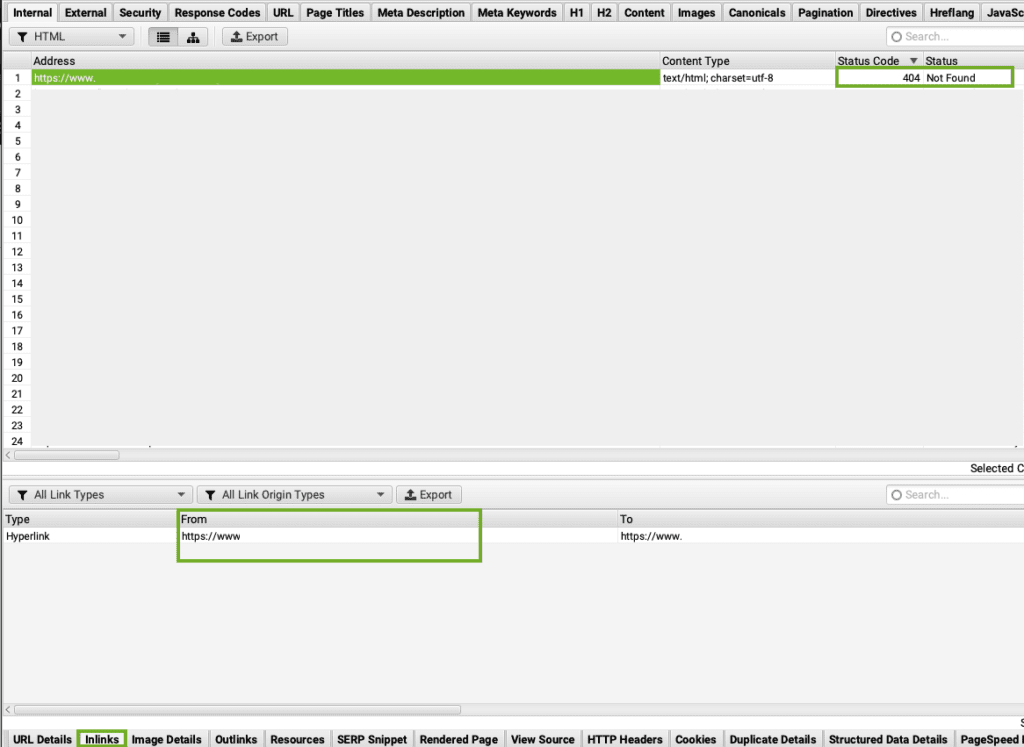
404s are error pages where a requested page hasn’t been found. This 404 has likely been found by Screaming Frog because you have links to this missing page somewhere on your website.

But don’t worry, you don’t have to guess.

Click on the 404 page address in the main window of the tool. Then head to the bottom and click on the Inlinks tab. Here you will be able to see any pages that currently contain links to the 404 page in the From column.

identifying location of links that 404 in screaming frog
Identifying Internal Links That 404 In Screaming Frog. Data Obscured For Privacy

From here you can go to your website, find the offending link/s and either update or remove them.

As for the 404 page itself, with nothing pointing to it (at least from your website) it will likely drop into deindexed obscurity. You could even add a 410 HTTP code to it.

If it was a page that has been given a new location, or there is a closely related page that would make sense to point it at, you could add a 301 redirect.

I’ll cover how to add both of these in just a short while, so don’t worry.

301s

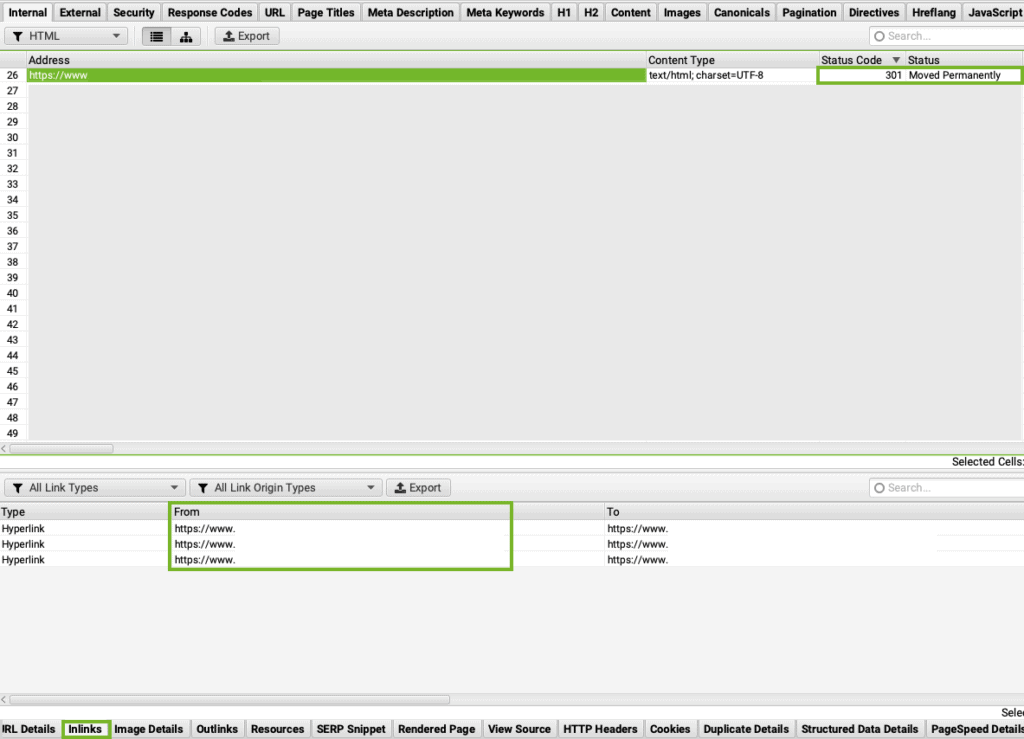
Finding 301 redirects in your crawl means that Screaming Frog has found and crawled a link on your website which points to a page that already redirects to another page.

This is not ideal, as it just adds extra steps for a user’s browser or a search engine. They can also end up causing issues with long redirect chains and loops in the future.

To identify links that redirect, click on the 301 page address in your crawl. Then head to the bottom and click on the Inlinks tab. Here you will be able to see any pages that currently contain links that redirect in the From column. There are 3 in the example below.

Identifying internal links that redirect In Screaming Frog
Identifying Internal Links That Redirect In Screaming Frog. Data Obscured For Privacy

From here you can go to your website, find the links and update them to point to the correct URL, to remove the need for redirection.

Keeping clean and tidy direct internal links wherever possible is best practice.

Implementing 301s & 410s

Here we can turn to another tool I mentioned in the previous post. The very useful Redirection Plugin for WordPress (Yoast Premium also offers a redirection tool). These tools mean you can implement and update redirects, without having to ask your developer every time you need one adding.

The Redirection plugin is very simple to use, and I’ll just cover creating and editing 301 redirects and 410s.

Creating A 301 Redirect

In the Redirection plugin dashboard click Add New. You will then see the following:

Screenshot of Redirection plugin dashboard
Redirection Plugin – Adding A 301 Redirect

Add the URL that you are directing from in the Source URL field (just the part of the URL after the domain name). Then add the URL that you wish to redirect to in the Target URL field (using the same format). Click Add Redirect, and you’ve created a 301 redirect.

If you need to find that redirect again to either delete or edit it, you will be able to search your full list of redirects below using the URL search bar, which you can see at the bottom right of the screenshot above.

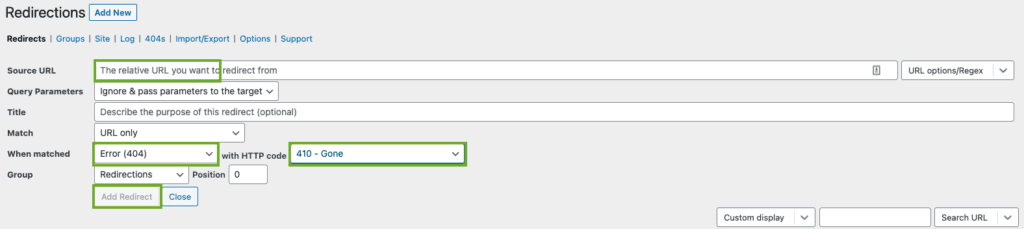
Creating A 410

To create a 410 add the URL you wish to mark as gone into the Source URL field. Then click the little setting cog icon that lives next to the Close button.

Redirection Plugin - Adding A 410
Redirection Plugin – Adding A 410

This will open more fields.

Redirection plugin, adding a 410 part 2
Redirection Plugin – Adding A 410

Using the drop-down menus under When Matched, select Error (404) in the first box, and then select 410 – Gone in the second box. Then click Add Redirect, and your 410 is complete.

As with your 301 redirects, you can also search your 410s via the URL search box, if you need to edit or amend.

Run Your Own WordPress SEO Audit

Everything I’ve covered above works as a standalone checklist too. If you want to run a quick top level audit of you own website, work through the following in order:

  • Page titles – Check for duplicates, missing titles, and anything getting truncated in the SERP.
  • Meta descriptions – Look for missing or duplicated descriptions across your pages.
  • Slugs – Flag any auto-generated overly long URLs that don’t reflect the content on page.
  • Heading structure – Confirm that each page has one H1, and that heading follow a logical hierarchy underneath it.
  • Internal linking – Check key pages are getting relevant internal links with descriptive anchor text, not just nav menu links.
  • Images – Look for oversized files, missing alt text (if not just a decorative element), and any images that could be compressed or converted to WebP.
  • Redirects – Crawl your site for 404s, and 301 internal redirects that need fixing.

Run this mini audit every few months or whenever you publish a batch of new content, to keep on top of the basis without waiting for your SEO partner to flag them. Then they can focus on the larger strategy.

Impact Media’s Approach To SEO

SEO is ever more important for our clients and is in constant flux. As such we ensure that we are always striving to build websites that demonstrate best practices, that are SEO friendly in structure and build, and that are easy to optimise. 

We strongly encourage all of our clients to involve their SEO partners from the very start of every web development project. We also have trusted partners we can recommend if you don’t have one in place.

This is the best way to ensure the final website is built with a solid SEO foundation, and that careful migration is carried out to limit the impact a website redesign can have on rankings. 

I keep our team up to date on all the latest search marketing news, to ensure that we are always learning and improving in this area, which is so interwoven in web development.

Share Socially
Vikki Baker
Vikki Baker
Digital Marketing Manager, Cat Lady & Former Female Indiana Jones
Vikki has over 15 years of experience in Digital Marketing for WordPress specialist agencies. She loves WordPress for its simplicity of use, huge flexibility, and how great it is for SEO.
View Team Profile
See More Articles
Vikki Baker
Vikki Baker
Digital Marketing Manager, Cat Lady & Former Female Indiana Jones
Vikki has over 15 years of experience in Digital Marketing for WordPress specialist agencies. She loves WordPress for its simplicity of use, huge flexibility, and how great it is for SEO.
See More Articles
View Team Profile

If You Liked This, You Might Like These

Marketing
October 13th, 2026
15 min read

The GDPR Gaps We Still See On Websites In 2026

A look at frequently overlooked GDPR and related privacy obligations and measures for websites, beyond cookie consent.

Martin CoatesMartin Coates
 
Marketing
August 18th, 2026
13 min read

The Risks Of Domain Migrations & How To Manage Them

Discover the key factors in a successful domain migration. Understand the risks before making this crucial change.

Vikki BakerVikki Baker
 
Marketing
An email inbox open on a laptop screen.
July 3rd, 2026
9 min read

Email Tracking Compliance Just Got Harder. What Do UK Mar...

Stay informed about the latest developments in email tracking. Compliance in the EU and UK is more complex than ever for businesses.

Vikki BakerVikki Baker
 
Want more control over
how you manage content in WordPress?
Edit content that was previously restricted and get creative with building pages in WordPress.
Let's Chat
studio@impactmedia.co.uk
020 3355 8747
Impact Media's LinkedIn
Impact Media's Twitter
Impact Media's Facebook
Impact Media's Instagram
Impact Media's Youtube
wordpress.org

About Impact

  • About Impact Media®
  • Meet The Impact Team
  • Why WordPress?
  • Our Web Development Process
  • Careers
  • Awards
  • Partners
  • Giving Back
  • 100K Tree Challenge

WordPress Services

  • WordPress Web Design
  • UX Design
  • WordPress Development
  • WordPress Evolve Retainers
  • WooCommerce Development
  • Multisite WordPress
  • Migrate To WordPress
  • Custom Integrations & Plugins
  • WordPress Consultancy

WordPress Support

  • WordPress Support & Maintenance
  • WordPress Managed Hosting
  • Case Studies
  • Insights
  • Contact Us

Addresses

London Address:

50 Liverpool Street,

London, EC2M 7PY, UK

+44 (0) 20 3355 8747


Registered Address:

Woodland Place, Hurricane Way

Wickford, SS11 8YB, UK

  • Privacy Policy
  • Cookie Policy
Impact Media logo
© Impact Media® 2003 - 2026
Impact Media is a trading name of IMDMS LTD. Company Reg. 05970261
Impact® & Impact Media®
are registered trademarks of IMDMS LTD